

How to change or reset your MyYoast account password
MyYoast is the customer portal where you can find and manage all your Yoast SEO products. Don’t have an account yet, or not sure how it works? Check the MyYoast Quickstart Guide for all the answers.
In this article, we’ll explain how to change your MyYoast account password, reset it if you’ve lost access, and create and log in with a passkey.
How to change your MyYoast account password
To change your current password, follow these steps.
- Log in to MyYoast
Follow these instructions if you don’t know how to log in.
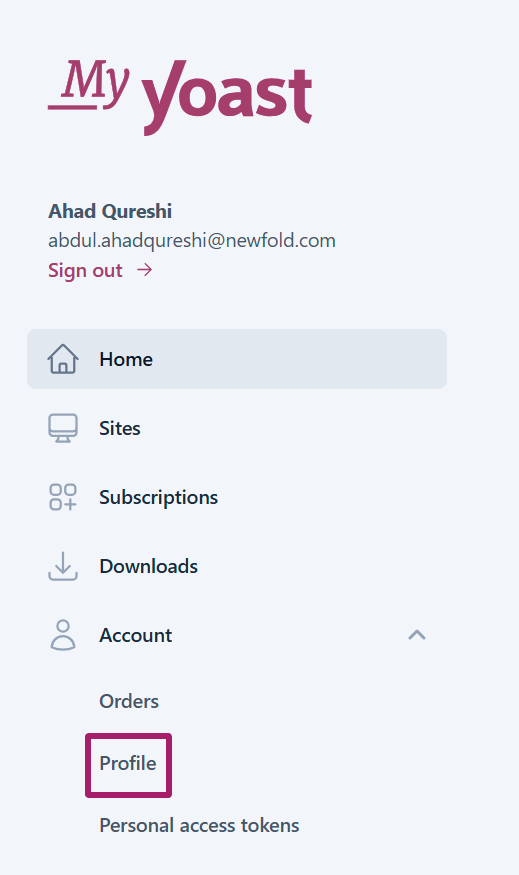
- In the sidebar menu, go to Account and click on Profile
- Under Password, enter your new password
Fill in your current password, and enter plus confirm your new password.
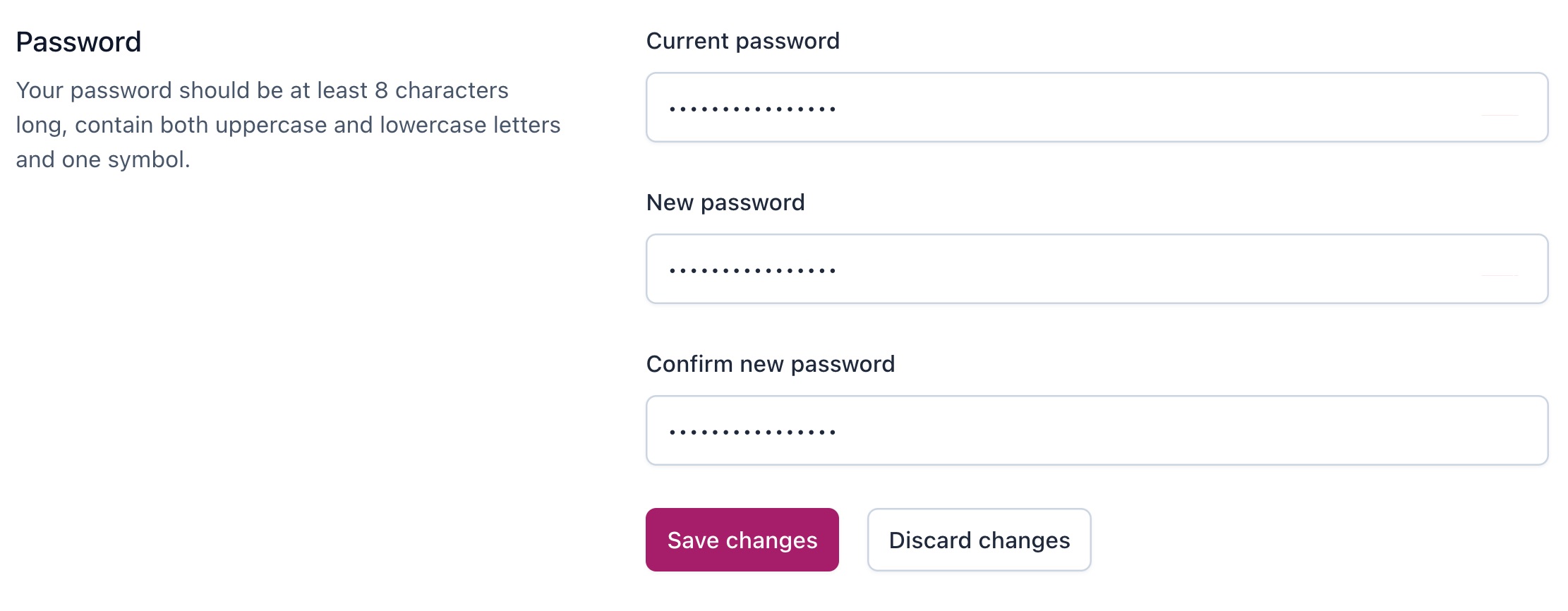
- Click Save changes
You have now successfully changed your password.
How to reset your MyYoast account password
To create or reset a lost MyYoast password, please follow these steps.
- Go to MyYoast
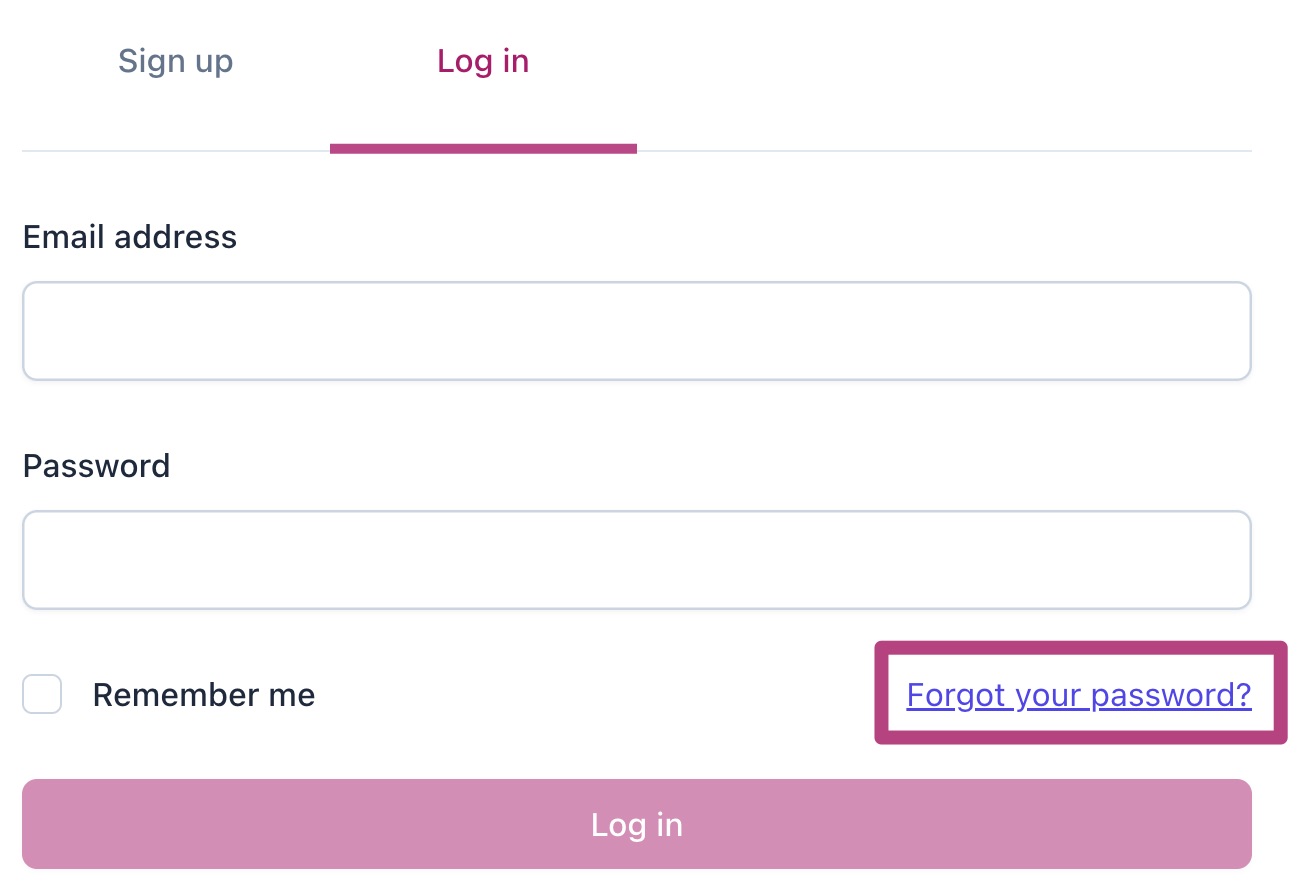
- Click on the Forgot your password? link
- Enter your MyYoast account email address
Fill in the email address that you used to create your MyYoast account. A reset link will be sent to this address.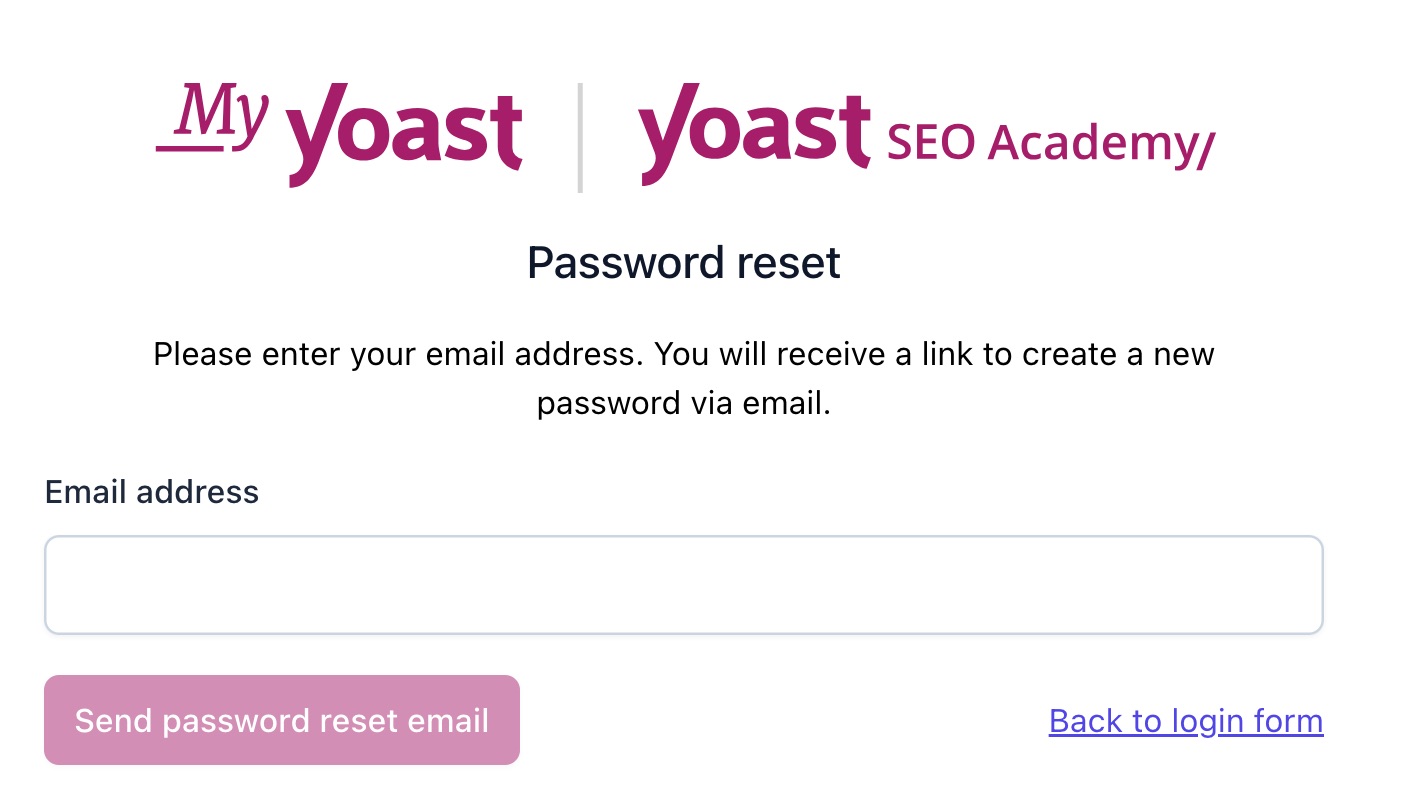
- Check your email and click Reset your MyYoast password

- Enter a new password in the New password field
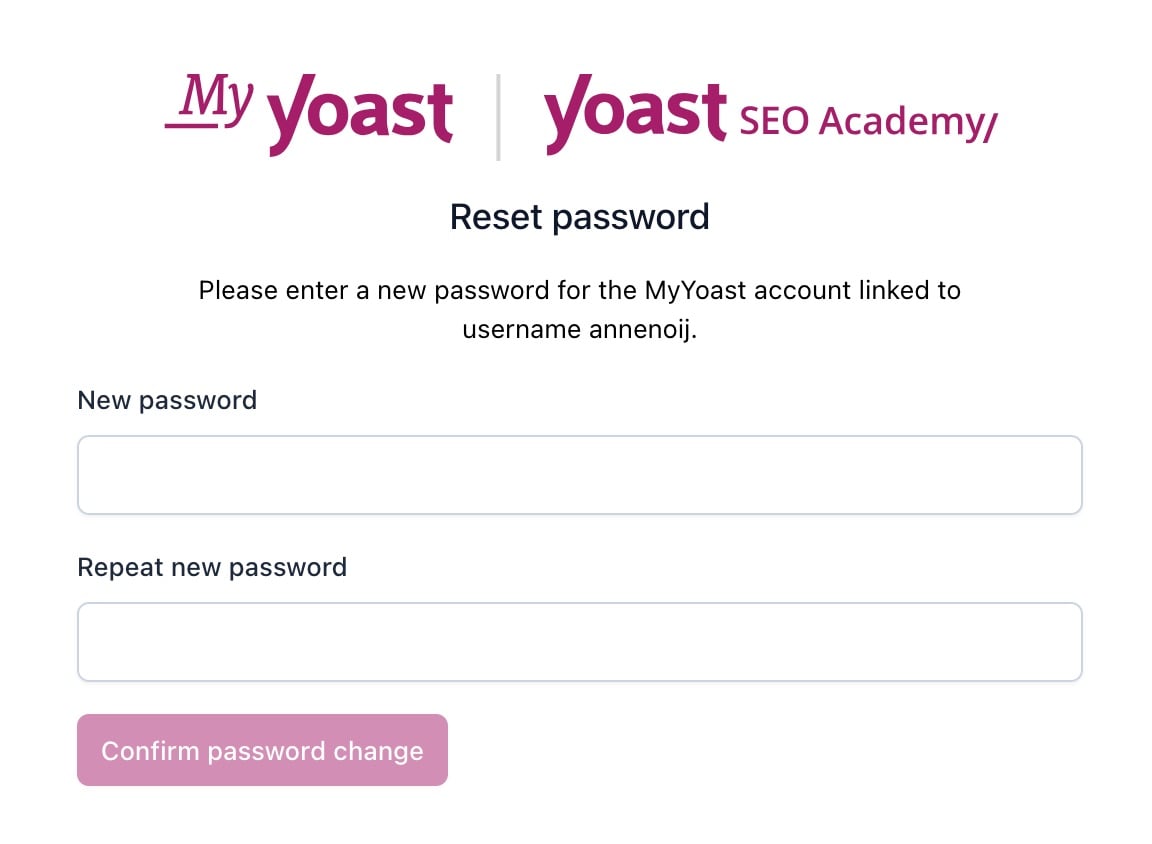
- Click Confirm password change
- You can now log in with your new password!
How to create and log in with a passkey
Here’s how to create a passkey and log in with your fingerprint, face, screen lock, or security key.
- Go to MyYoast
- In the sidebar menu, go to Account and click Profile.
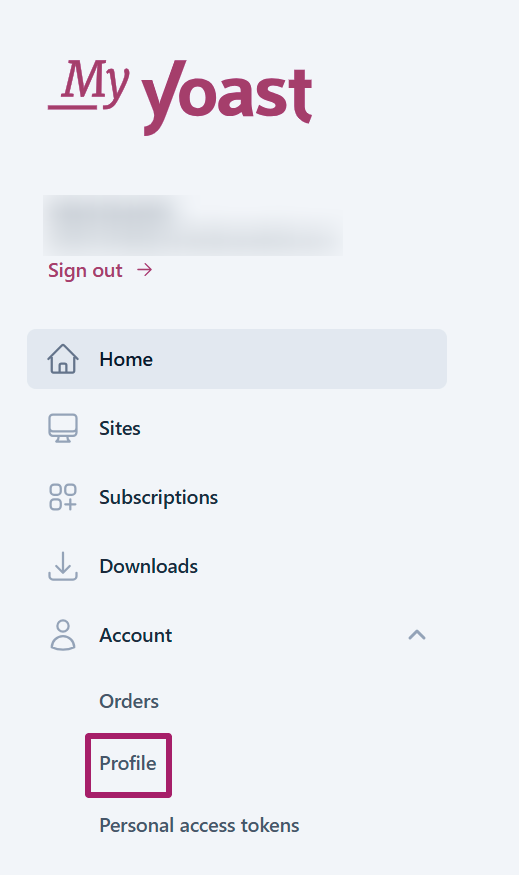
- Scroll down to the Passkeys section and click Add passkey.

- Enter a name for your passkey and your MyYoast password. Then, click Continue.
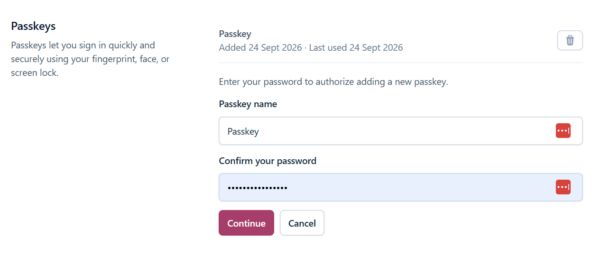
Once you’ve created a passkey, you can use it to log in to MyYoast with your fingerprint, face, screen lock, or security key, depending on your device.

Get Yoast SEO Premium
Drive more traffic to your site. Use AI to save time doing SEO tasks. Make SEO easier. And get 24/7 support.
Includes Local SEO, Video SEO & News SEO.
Did this article answer your question?
Still having issues?
Try searching for your issue below