

Quick start guide for Yoast SEO for Shopify
With this quick start guide, we explain what Yoast SEO for Shopify can do for you so you can start optimizing your products as quickly as possible. We explain what Yoast SEO does, how you can access Yoast SEO, what to do first after installation, and basic account management. After reading this guide, you’ll know how to start working with Yoast SEO for Shopify.
What does Yoast SEO for Shopify do for you?
Yoast SEO automatically handles many technical aspects of SEO: product-specific structured data, canonical URLs, indexing your pages etcetera. You don’t have to touch code as Yoast SEO starts working immediately after completing the first-time configuration. These key benefits are not available through the Shopify platform itself!
Want to get hands-on with your content? We offer SEO analysis and and readability analysis to make sure your products can shine in search engine results, and tailor our recommendations for your desired keyphrases. In addition, you can tailor your shop’s appearance as Yoast lets you set titles, meta descriptions and images, either through variables, our AI Generate feature or your own expertise.
If you’re looking for more knowledge and support, you also gain access to the Yoast SEO Academy with courses on Shopify, ecommerce SEO and much more. Running into problems? You can contact our Support team, available 24/7 to help you with questions about the installation and basic use of the app.
With all these tools and features at your disposal, you’re ready to start optimizing your store and your products, either individually or in bulk.
How to access Yoast SEO for Shopify
There are several ways to access Yoast SEO in Shopify.
How to access Yoast SEO via Apps
- In your Shopify admin, go to Apps

- Search for and go to Yoast SEO

How to access Yoast SEO via More actions
- In your Products or other pages, go to More actions

- Go to Optimize in Yoast SEO
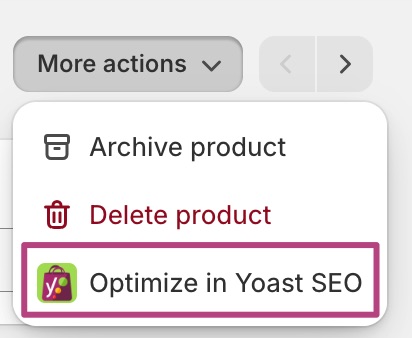
How to access Yoast SEO via the Shopify sidebar
- In your Shopify admin, go to Apps
- Search for and go to Yoast SEO
- In the sidebar, pin Yoast SEO
The pin appears when you hover over the app.
What to do first after installing Yoast SEO for Shopify
After installing Yoast SEO and pinning the app, you may wonder what to do next? Follow the instructions below to get the most out of your app.
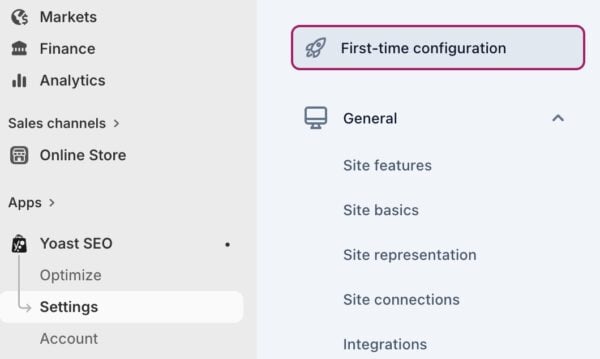
Complete the First-time configuration
You will be asked to the complete the First-time configuration immediately after installing the app. If you do not the complete First-time configuration, you can also access it under the Yoast SEO Settings.
The first step of the First-time configuration is Theme integration.
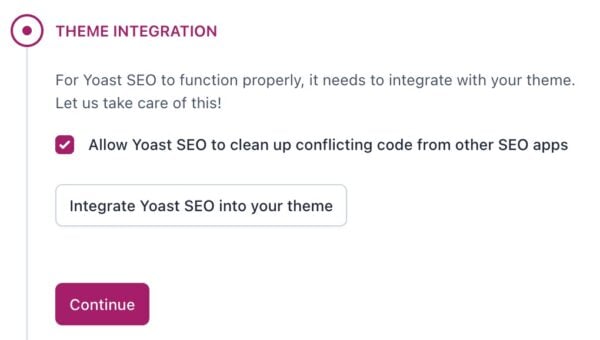
We make changes and additions to your store’s theme files. This optimizes technical SEO and connects our editing tools to the website’s output. Without the theme integration, Yoast SEO does not function properly.
The second step is to set up your Site representation.
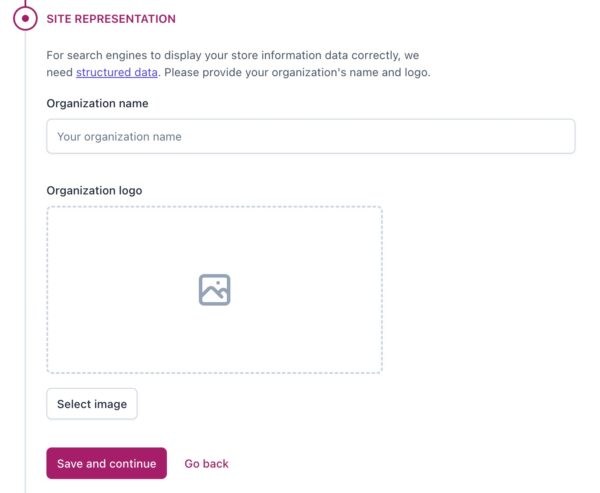
With these settings, you set up your Organization name and logo. This will allow us to output the correct structured data markup and explain your site to search engines. As a result, your site may feature in a Google Knowledge Panel.
The third step is to set up your Social profiles.
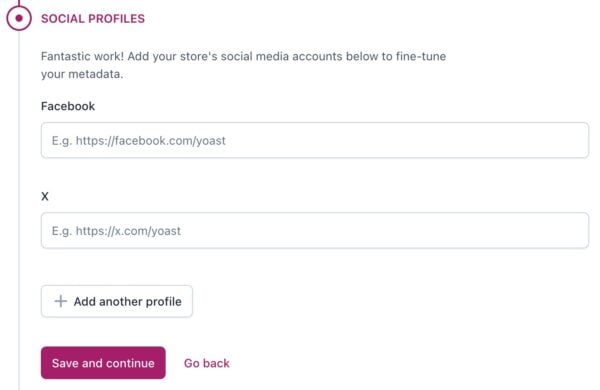
By filling in the Social profiles, Yoast SEO can build out your store’s social media. The standard options are Facebook and X, but you can also add profiles from platforms like Instagram, YouTube, LinkedIn, Pinterest and more.
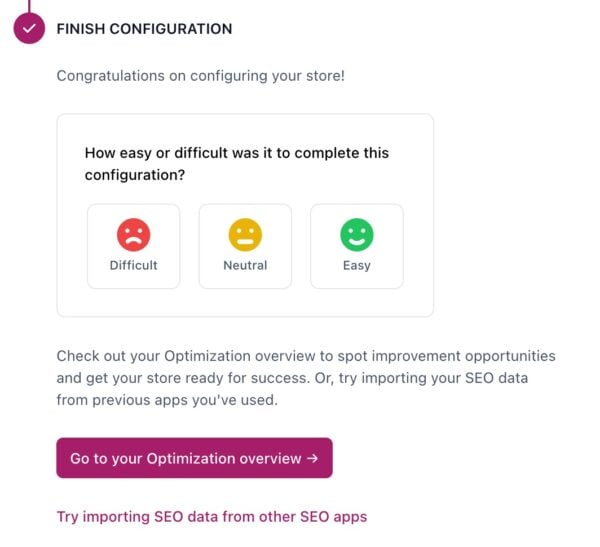
The last step is finishing the First-time configuration. Here, you can immediately go to your optimization overview, or import SEO data from other SEO apps.
Settings
You can find all the Settings explained in detail on this Shopify Settings page. To start with, we recommend completing the following steps.
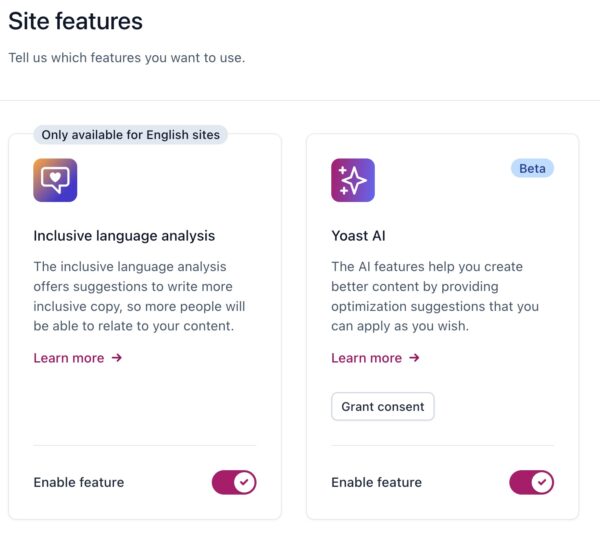
Under Site features, enable the Inclusive language analysis and Yoast AI features.
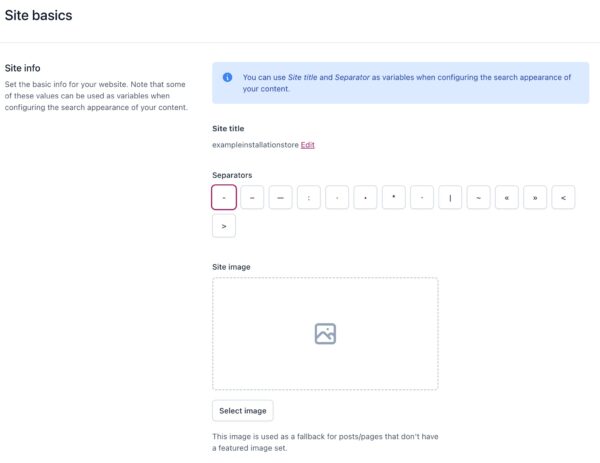
Under Site basics, set the Site title, Separators and Site images. This sets a default template for your site’s appearance in search engine results.
Under Site connections, click Start scan to connect your site to various webmaster tools. This will allow you identify existing search engine verifications or get instructions on how to establish such verifications.

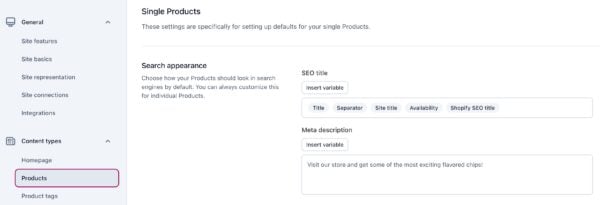
Under Content types, confirm that you’re happy with the variables chosen for the SEO title and meta description. These variables determine your content’s appearance in search results. If you leave these fields empty, our app will rely on data entered through Shopify.
If you want product reviews to appear in search results, you can use a compatible review app. Fera is officially integrated with Yoast SEO and Judge.me, Loox, Opinew, Ali reviews and Areviews are supported as well. Other review apps may work if they adopt Shopify’s standard metafield definition and do not duplicate the aggregate rating schema.
Optimize your products
You can now start optimizing your products in the editor. For every product page, there are five things you should always do:
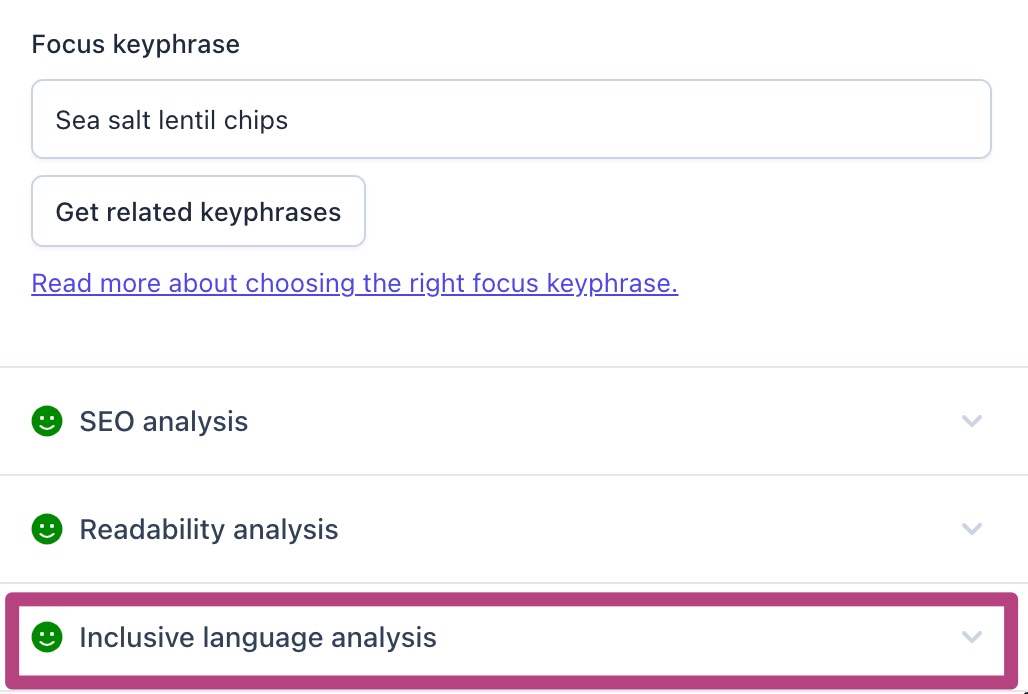
- Fill in your Focus keyphrase; this is the keyphrase that you’d like to be visible for.
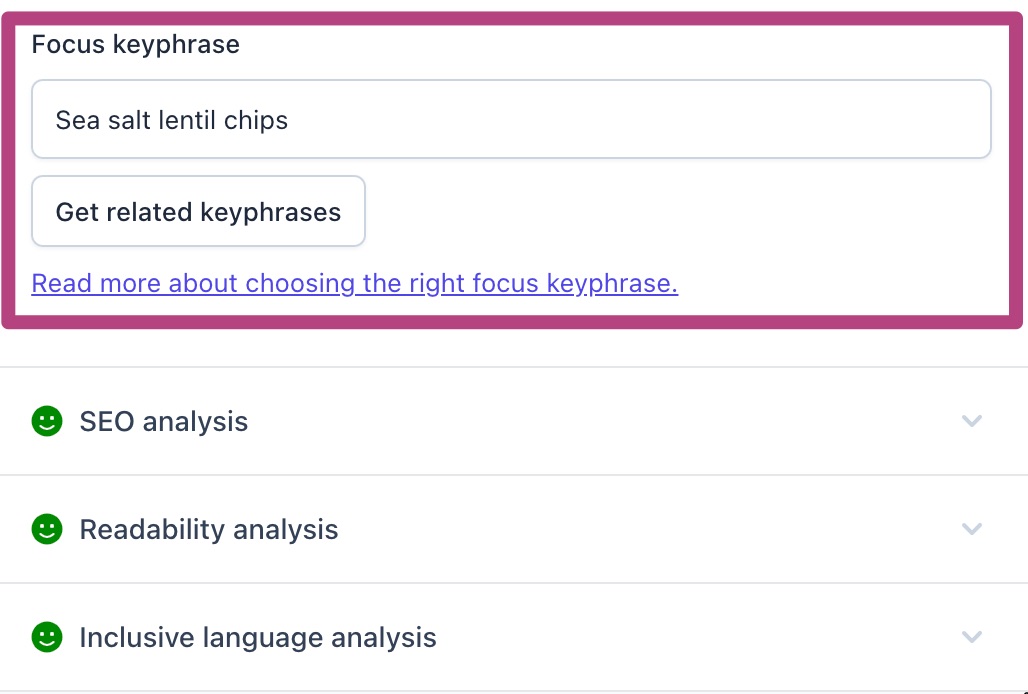
- Make your product page SEO-friendly with the recommendations under the SEO analysis.
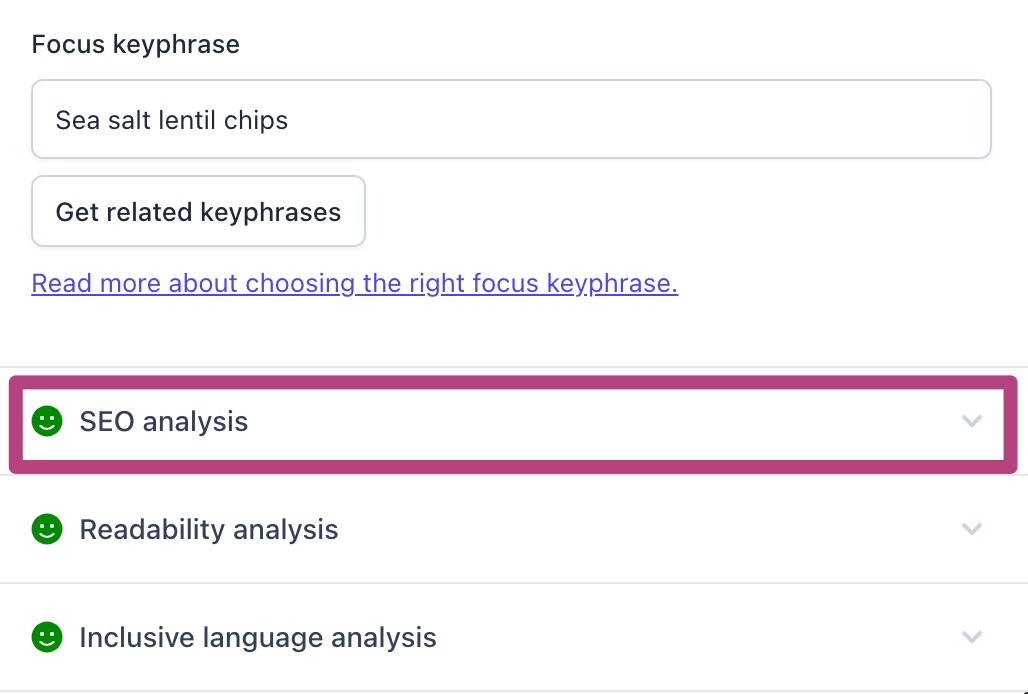
- Make the content of your product page readable with the suggestions under the Readability analysis.
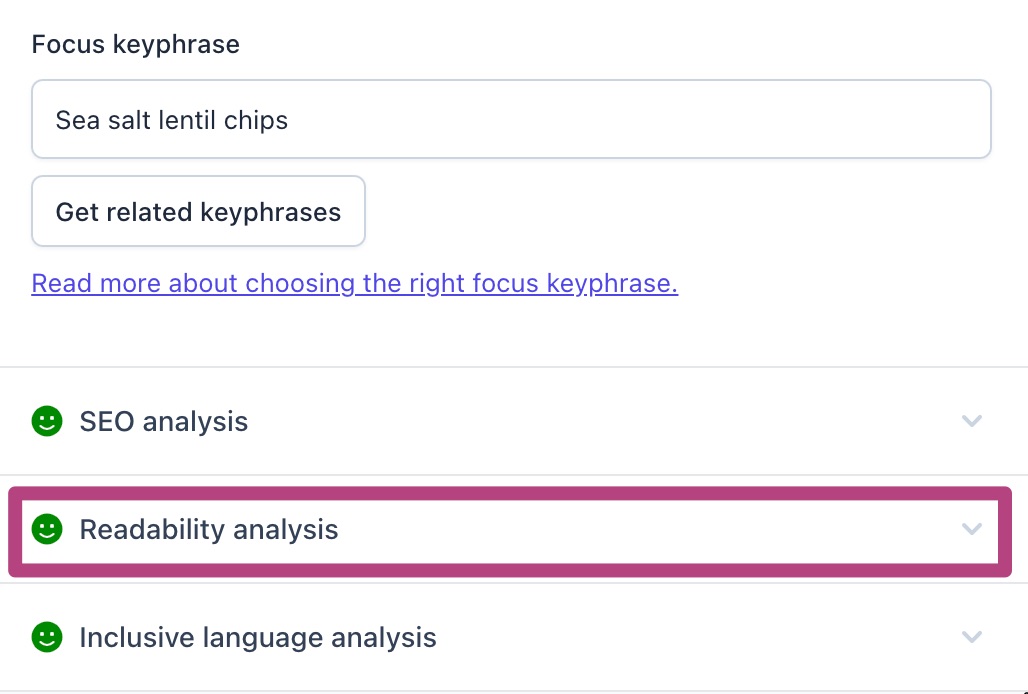
- If you activated this, you can also check if your content is inclusive with the Inclusive language analysis.
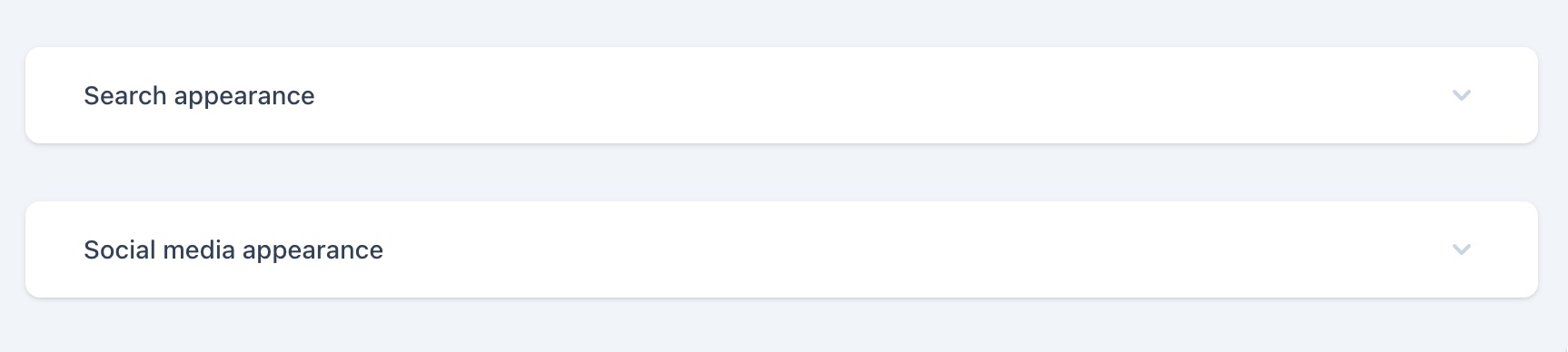
- Optimize your SEO title and meta description in the Search appearance and Social media appearance section.
Bulk editing
If you don’t want to edit items individually Yoast SEO lets you easily export a CSV file with all your SEO metadata, edit it, and import it back for easy bulk editing. Please keep in mind that you won’t see updated scores until you access the content in the editing screen.
Account management
How to switch to Yoast SEO for Shopify
Are you using a different SEO app for your Shopify store, but do you want to switch to Yoast SEO? Follow the instructions in our article How to switch to Yoast SEO for Shopify.
Uninstalling Yoast SEO
If you want to uninstall Yoast SEO, you’ll need to remove the changes the app made to your theme and delete the app to cancel your subscription. Follow the instructions in our article How to uninstall Yoast SEO for Shopify.
Will I lose any work if I uninstall Yoast SEO?
Unstalling and deleting the Yoast SEO for Shopify app means losing any optimization made through the Yoast SEO app. For example, you’ll lose focus keyphrases, Schema output management, and any information in the Yoast SEO Settings. Content entered in the Yoast SEO meta boxes will also disappear. If you uninstall Yoast SEO, your content returns to relying on Shopify data, so if you used variables based on Shopify data, i.e. the Shopify SEO title and Shopify meta description, this information will be used.
I have another question
Do you have other questions about your Shopify subscription? Check out the most frequently asked questions about managing your Yoast SEO subscription for Shopify. Can’t find an answer to your question? Contact our Support team via email or use the chat in the help beacon.

Get more traffic to your Shopify store
Yoast SEO gives you the tools to make SEO easy and grow your store’s organic traffic and sales.
Did this article answer your question?
Still having issues?
Try searching for your issue below